EVA Release v3.2

We’re Sharing the EVA v3.2 Release Update
The main updates in EVA v3.2 are:
- Event Data API integration to send detection results and operational information to external systems
- Detection Scheduling to automatically turn detection on and off by day and time for each scenario
- Thinking Mode improvements to incorporate user-defined exceptions and verify decisions in multiple stages
1. Connect Detection Data to a Range of Systems with the EVA API
At a site, equipment status, process information, safety alerts, and operational information are managed across different systems. A monitoring dashboard is one way to bring this information together. The EVA API lets you send EVA detection results to customer systems and use them in existing workflows. EVA v3.2 lets you send detection events and operational information to an API endpoint provided by an external system.
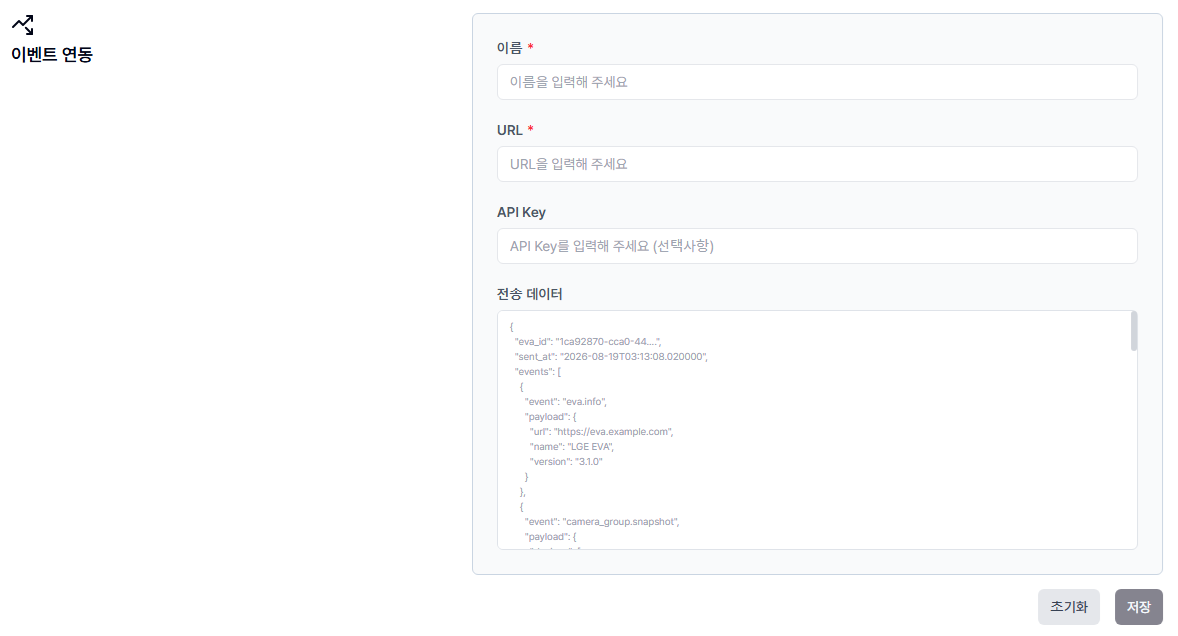
When EVA classifies a video analysis result as an alert, it sends event data to the receiving URL registered for the external system. The receiving system can forward the event to another service, trigger a workflow, or store it as a record. Because each system handles how data is displayed, stored, and used, it can be integrated with existing applications and operating procedures.
- Step 1. EVA analyzes video, creates a detection event, and sends it to the external API.
- Step 2. The external system’s receiving API accepts the event from EVA and processes it in the required format.
- Step 3. Individual applications use the data for monitoring, event history, reporting, and other workflows.
The image below shows one way to use detection events in a monitoring interface. The EVA live ad hoc application displays detection result data fetched from EVA through an API.
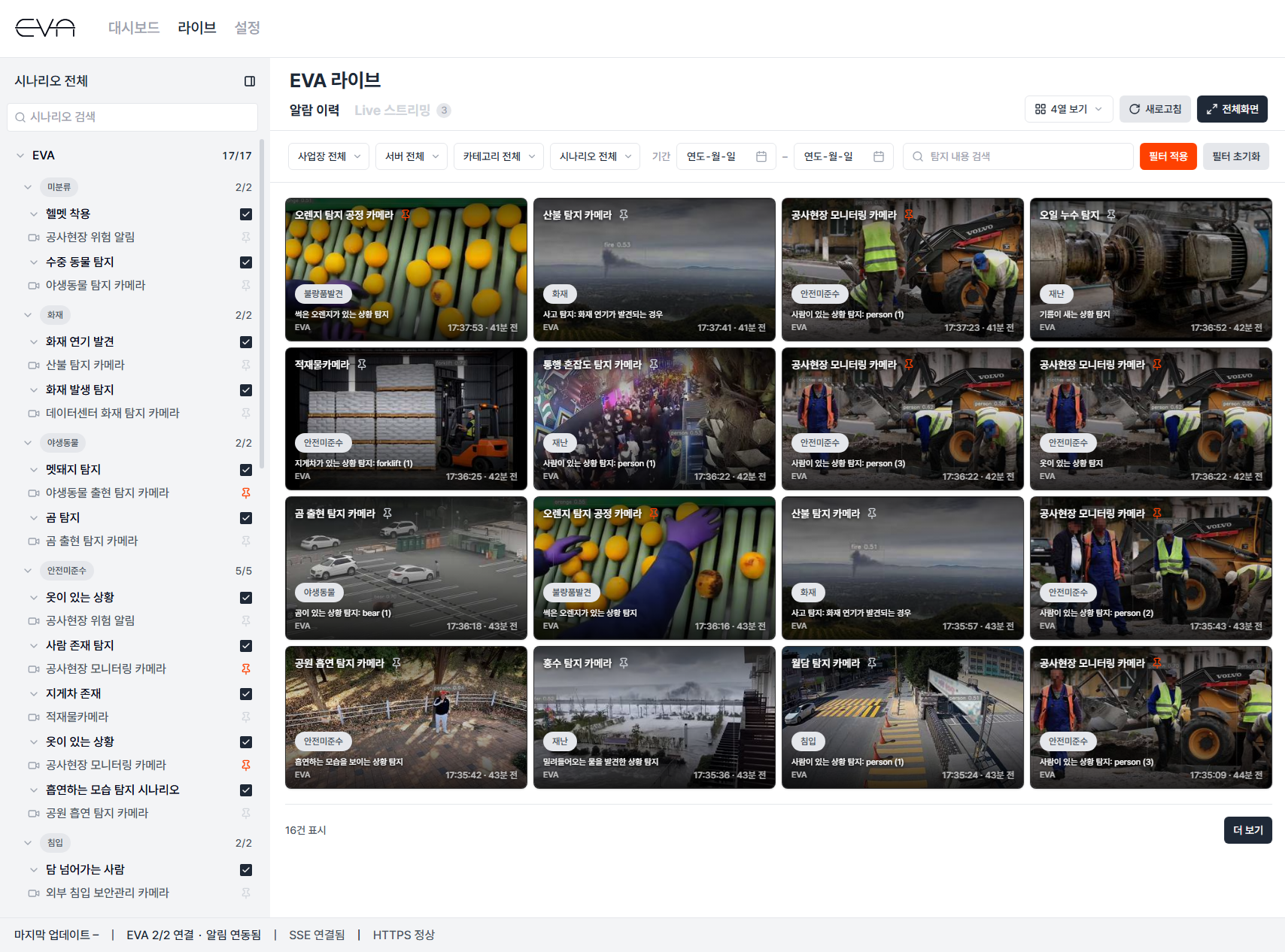
Detection events include information that external systems need to identify and display an event:
- Detection time
- Camera information
- Detection scenario
- Detection message based on the scenario
- Detailed description of the detected situation
- Image URL
- Other information
This information can be combined to show “which camera detected what, and when.” For example, a dashboard that receives a fire detection event can display the camera location, event time, detection image, and description together. Other customer systems can use the same data in their own workflows.
EVA operational information can also be sentEvent integration sends EVA server information and camera and group configuration data in addition to detection alerts.
| Event | Data sent | When it is sent |
|---|---|---|
eva.info | EVA server name, address, and version | When the server starts or receiving endpoint settings are saved |
camera_group.snapshot | Full list of cameras, groups, users, and their relationships | When related configuration is added, updated, or deleted |
analysis.alert | Detection alerts generated by video analysis | When an analysis alert occurs |
Camera and group configuration is sent as a snapshot of the full list at that point in time. External systems can use it to reflect relationships between cameras and groups. For example, they can associate camera identifiers with location information in an external system or organize monitoring views by area based on EVA camera groups.
Ways to use the dataCustomer systems can use data from EVA in many ways, including:
- Integrated monitoring: View equipment and process information alongside EVA detection alerts
- Dashboards: Organize detection status by area using camera and group information
- Event history: Store detection times, messages, and images in an external system
- Detection reporting: Analyze stored events by time period, area, or category
These are only a few examples. Customers can connect EVA data to their existing systems and workflows in other ways as well.
2. Schedule Detection for the Times You Need It
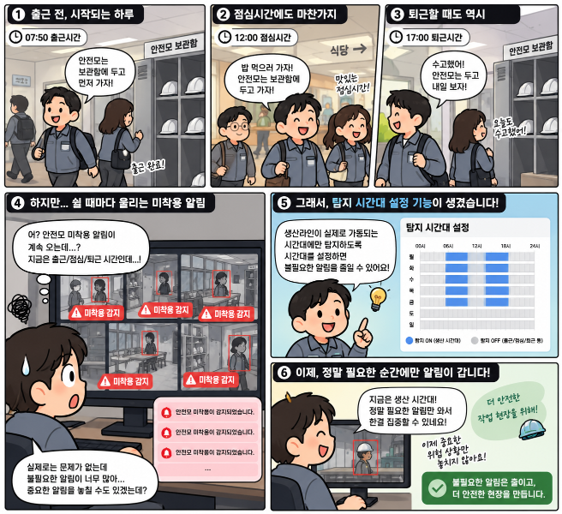
A site may need to check for missing safety helmets during work hours, while the same detection criteria could generate unnecessary alerts during commutes or lunch breaks. People may pass through an area frequently during the day, while after-hours monitoring may be needed to detect entry into an unoccupied area. EVA v3.2 lets you schedule detection to match these operating conditions. You can run a scenario only during working hours or set up separate detection schedules for nighttime and weekends.
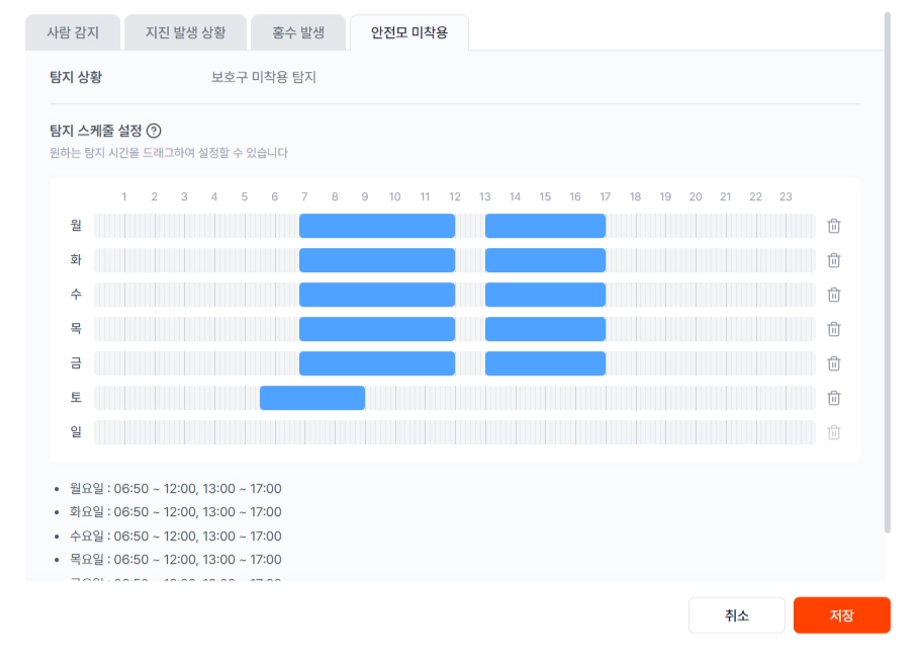
Use [Detection Schedule] on the device details screen to set detection hours for each scenario. Detection starts automatically at the scheduled time and stops when that time window ends, so operators do not need to turn scenarios on and off at the same time every day.
Schedules are applied per scenario. On the same camera, you can check for missing safety helmets during work hours and detect people entering the area at night.
| Detection scenario | Example schedule | Behavior |
|---|---|---|
| Check for missing safety helmets during work | Mon–Fri, 08:00–12:00 and 13:00–17:00 | Run detection during work hours and pause over lunch |
| Detect people entering after work | Mon–Fri, 18:00–21:00 | Detect people entering only during the specified evening hours |
| Monitor an unoccupied area at night | Every day, 23:30–08:30 the next day | Run detection through an overnight period that crosses midnight |
| Pause detection on weekends | No time set for Saturday or Sunday | Do not run this scenario on weekends |
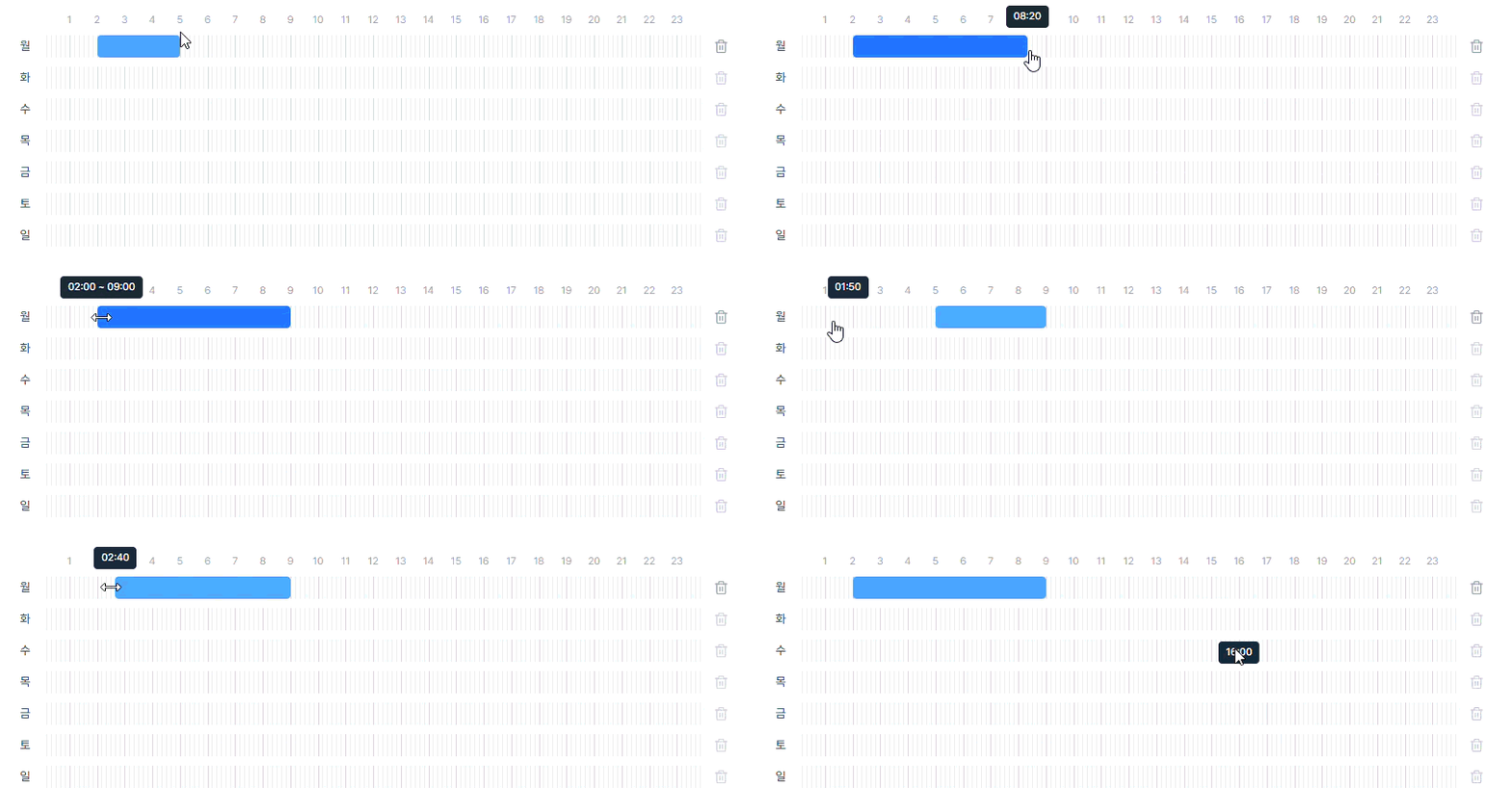
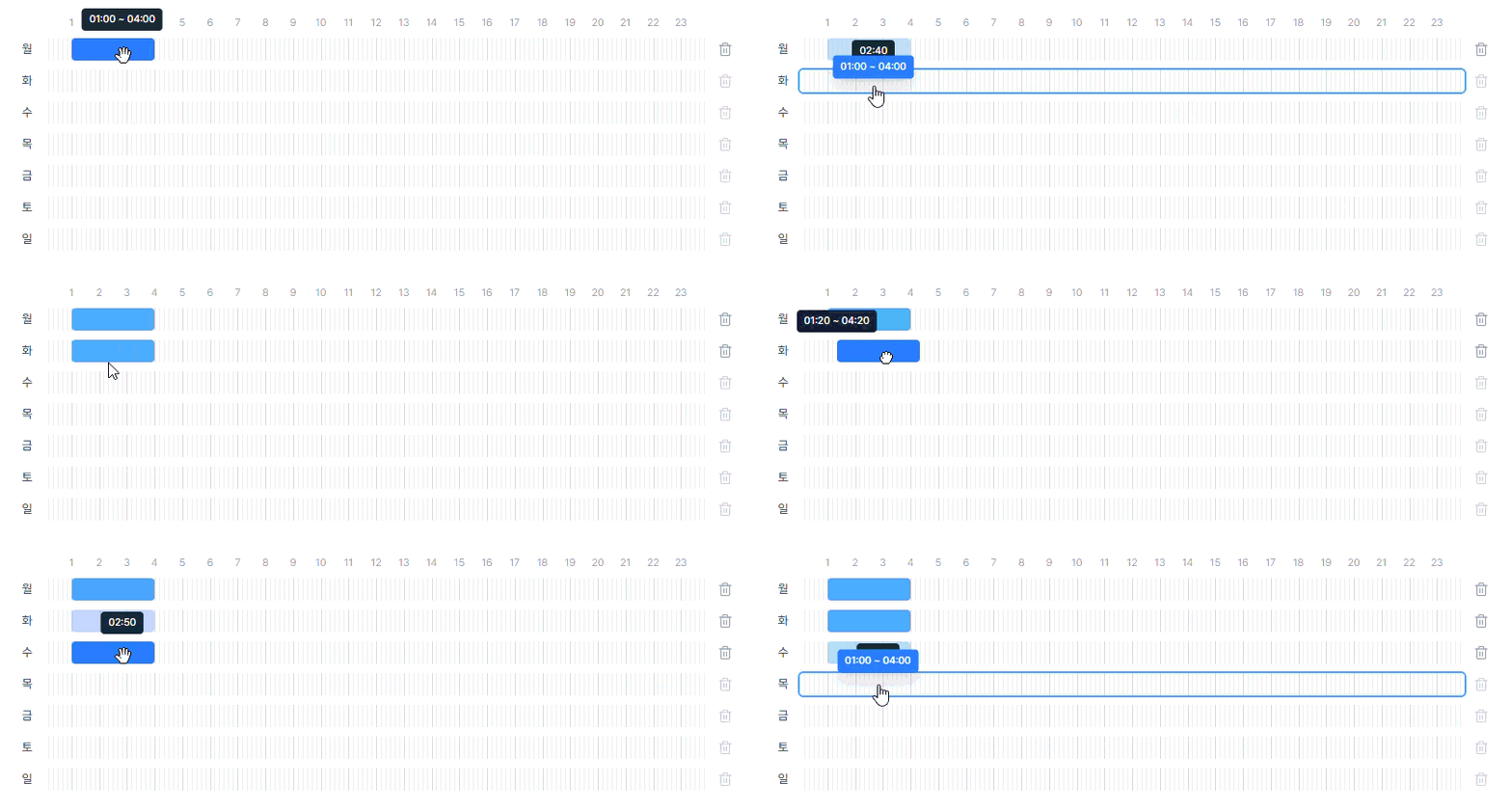
- Spend less time turning scenarios on and off each day.
- Reduce alerts during times when detection is not needed, such as commutes, lunch breaks, and days off.
- Apply different operating hours to different scenarios on the same camera.
3. Thinking Mode Reflects Site Conditions
When detecting falls, fires, or smoke, similar-looking scenes need to be distinguished from actual hazards. A mannequin on the floor may look like a person who has fallen, welding sparks may look like a fire, and a scene in a poster or on a screen may be mistaken for something happening at the site. The previous Thinking mode evaluated a scene around a single question. This made it difficult to fully account for site-specific exceptions or separately review evidence of danger and possible misinterpretations. In EVA v3.2, Thinking mode has been improved to incorporate user-provided context and exceptions, evaluate the scene from different perspectives, and perform additional verification.
For example, at a site where welding takes place, a fire detection scenario could include the following condition:
Detect fires that occur in the work area.
Exclude sparks produced during normal welding. → Add an exception
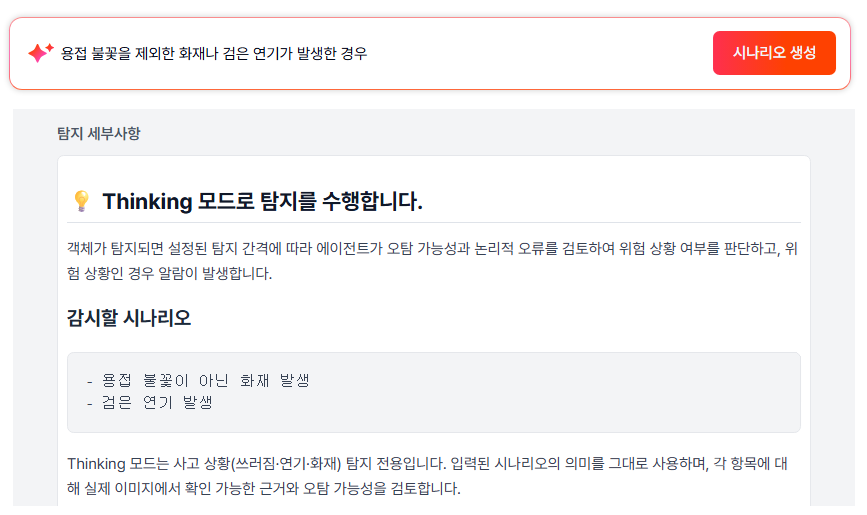
Thinking mode considers this condition during its evaluation. Describing the site conditions in detail makes it easier to define which scenes should be detected and which should be excluded.
The improved Thinking mode uses two roles:
- The evidence-review role examines the full scene and an enlarged image of the region of interest. It checks for visual evidence that meets the detection criteria while considering the surrounding context.
- The possible-confusion review role looks at the full scene for alternative explanations. It checks whether normal work has been mistaken for an accident or whether a mannequin, poster, or scene on a screen has been misinterpreted.
The two roles make their assessments without seeing each other’s results. If both find evidence supporting a hazard, the system proceeds to the next verification step. For example, when a scene looks like a fire, one role looks for evidence of an actual fire while the other checks whether normal welding could explain it. Reviewing the same scene from different perspectives provides a cross-check. Once the two roles agree, the system rechecks the facts and reviews additional scenes.
In the final step, the system describes the region of interest as it appears, without being told which incident it is looking for. For example, if an area judged to contain a fallen person is described as “a mannequin lying on the floor,” that contradicts the conclusion that the subject is a real person, so the alert is blocked. An alert is not blocked just because the description is ambiguous; it is blocked when the description clearly contradicts the target.
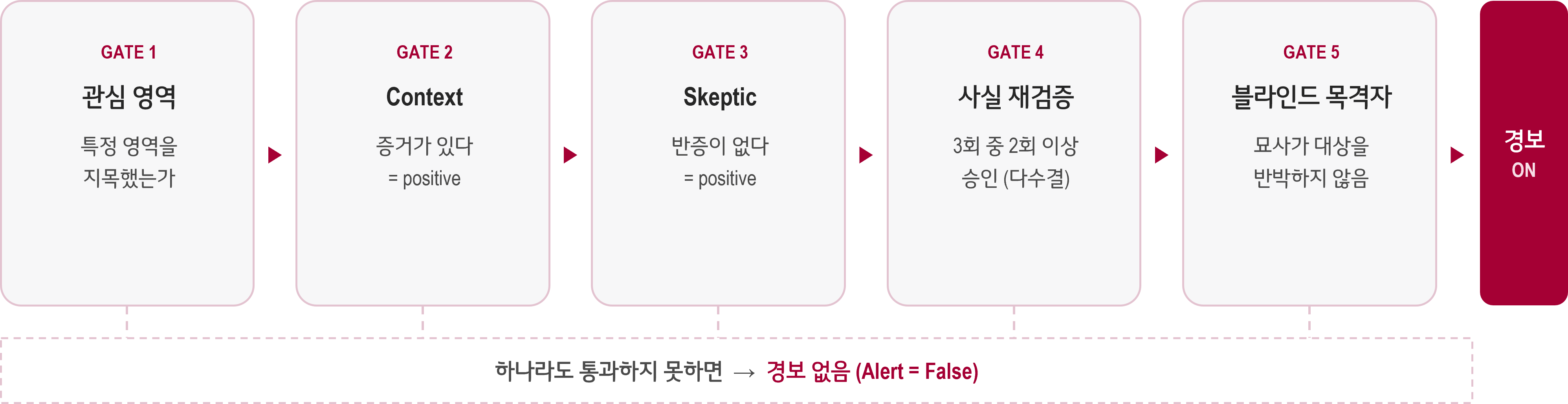
To get the most from Thinking mode, provide context and exceptions that match your site. Look for common features in recurring false alarms and add them to the scenario to make the evaluation criteria more specific. For example, if sparks from normal work are mistaken for a fire, describe that work and specify the exception. These criteria are also applied when the system evaluates new scenes.
What changes for users?- Reflect site work conditions and exceptions in Thinking mode evaluations.
- Reduce false alarms by independently reviewing evidence of danger and possible misinterpretations.
- Review detection results through the evaluation stages and their explanations.